By statisticstoolsofficial@gmail.com / August 6, 2026
- Home
- How to Calculate Coefficient of Variation in Google Sheets
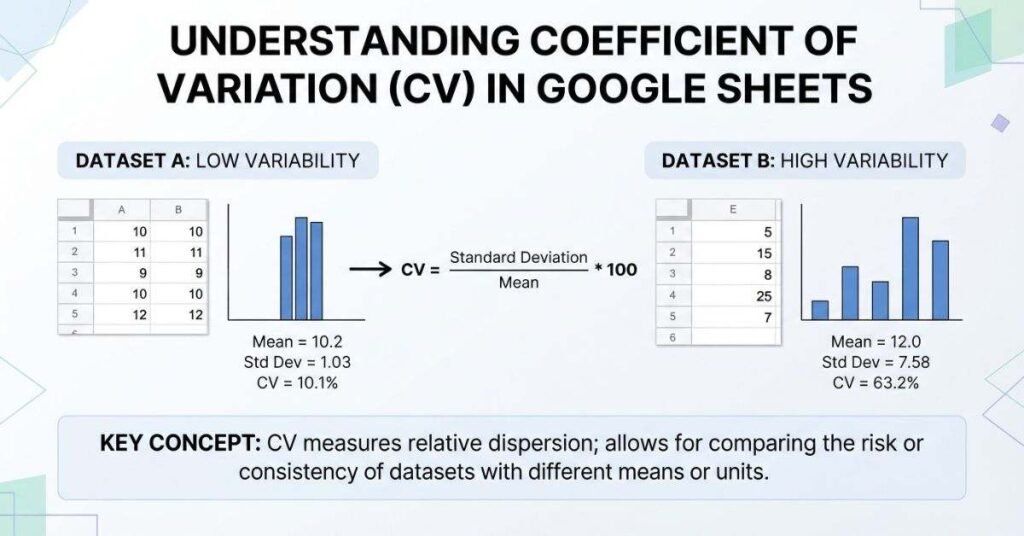
Table of Contents
- Introduction
- How to Calculate Coefficient of Variation in Google Sheets
- What Is the Google Sheets Formula for Coefficient of Variation?
- Step-by-Step: Calculate CV in Google Sheets
- Sample vs. Population CV in Google Sheets
- Coefficient of Variation Example in Google Sheets
- How to Calculate CV as a Percentage in Google Sheets
- How to Find Coefficient of Variation in Google Sheets
- Common Mistakes When Calculating CV in Google Sheets
- Google Sheets vs. Excel for Calculating CV
- Calculate Coefficient of Variation From Your Data
- Conclusion
Introduction
Have you ever compared two datasets and wondered which one has more consistent results?
The coefficient of variation, or CV, helps you compare variability across datasets with different means. It is especially useful when standard deviation alone does not tell the full story.
For beginners, calculating CV may seem complicated at first. However, Google Sheets makes the process quick with a few simple formulas. You do not need advanced statistics skills or special spreadsheet tools.
In this guide, you will learn how to calculate coefficient of variation in Google Sheets using clear, beginner-friendly steps. You will see the exact formulas for sample and population data.
We will also explain how to calculate CV as a percentage and avoid common spreadsheet mistakes. You will learn when to use STDEV.S versus STDEV.P.
By the end, you will be able to calculate CV confidently from your own data. You can also use the method to compare relative variability between datasets.
How to Calculate Coefficient of Variation in Google Sheets
The quickest way to calculate the coefficient of variation in Google Sheets is to divide standard deviation by the mean. For sample data, enter this formula in an empty cell:
=STDEV.S(A2:A10)/AVERAGE(A2:A10)This formula combines two Google Sheets functions:
- STDEV.S calculates the sample standard deviation.
- AVERAGE calculates the arithmetic mean.
- Division calculates the coefficient of variation.
The result appears as a decimal by default. To report CV as a percentage, select the result cell and click the Percent button in Google Sheets. For example, a result of 0.15 displays as 15%.
This approach keeps the calculation simple and reduces the chance of formatting errors. You don’t need a dedicated CV function to calculate the result.
What Is the Google Sheets Formula for Coefficient of Variation?
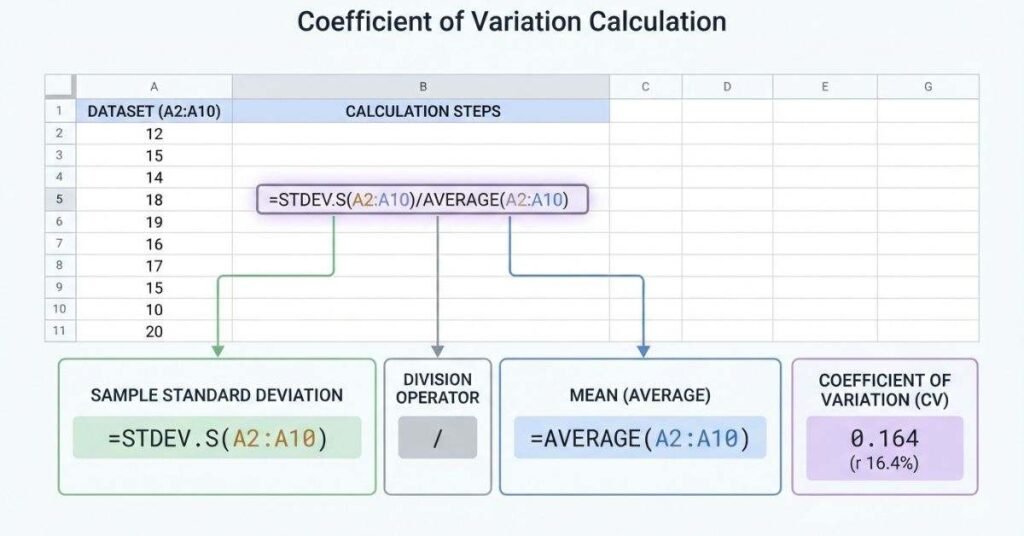
The correct formula depends on whether your data represents a sample or an entire population. For sample data, use:
=STDEV.S(A2:A10)/AVERAGE(A2:A10)Use STDEV.S when your values represent a sample taken from a larger population. This is common when you analyze measurements from a selected group rather than every possible observation.
For population data, use:
=STDEV.P(A2:A10)/AVERAGE(A2:A10)Use STDEV.P when your dataset includes the entire population you want to analyze. Both formulas divide standard deviation by the mean.
The main difference comes from how Google Sheets calculates standa